Building for Android
- Ensure that the following environment variables are set:
ANDROID_SDK_ROOTANDROID_NDK_ROOT:$ANDROID_SDK_ROOT/ndk/28.2.13676358/ANDROID_SDK_ROOTcan be any directory (such as~/android-sdk). All of the Android build dependencies will be installed there.
- Install the latest version of the Android command-line tools to
$ANDROID_SDK_ROOT/cmdline-tools/latest. - Run the following command to install the necessary components:
sudo $ANDROID_SDK_ROOT/cmdline-tools/latest/bin/sdkmanager --install \ "build-tools;36.0.0" \ "emulator" \ "ndk;28.2.13676358" \ "platform-tools" \ "platforms;android-37" \ "system-images;android-37;google_apis;arm64-v8a" - Run
./mach build --android
Note: This will install dependencies and build Servo for the aarch64-linux-android platform.
In order to build Servo for other Android targets, ensure that you install the appropriate system images via sdkmanager and pass --target with a Rust compatible target to mach when building instead of --android.
Note: If you are not using Android Studio on macOS, you will need to install a JDK.
Use brew install opendjdk@21 to install a usable version; newer versions cause java.lang.IllegalArgumentException: 25 when running the gradle build step during the Servo build.
Note: If you are using Nix, you don’t need to install the tools or set up the ANDROID_SDK_ROOT and ANDROID_NDK_ROOT environment variables manually.
Simply enable the Android build support running:
export SERVO_ANDROID_BUILD=1
in the shell session before invoking ./mach commands
Building with Android Studio
It’s recommended to build Servo via the command-line for Android, but you can also build it using Android Studio, if you prefer to use the Android IDE.
- Install Android Studio by downloading the appropriate version from the official website and following the installation instructions.
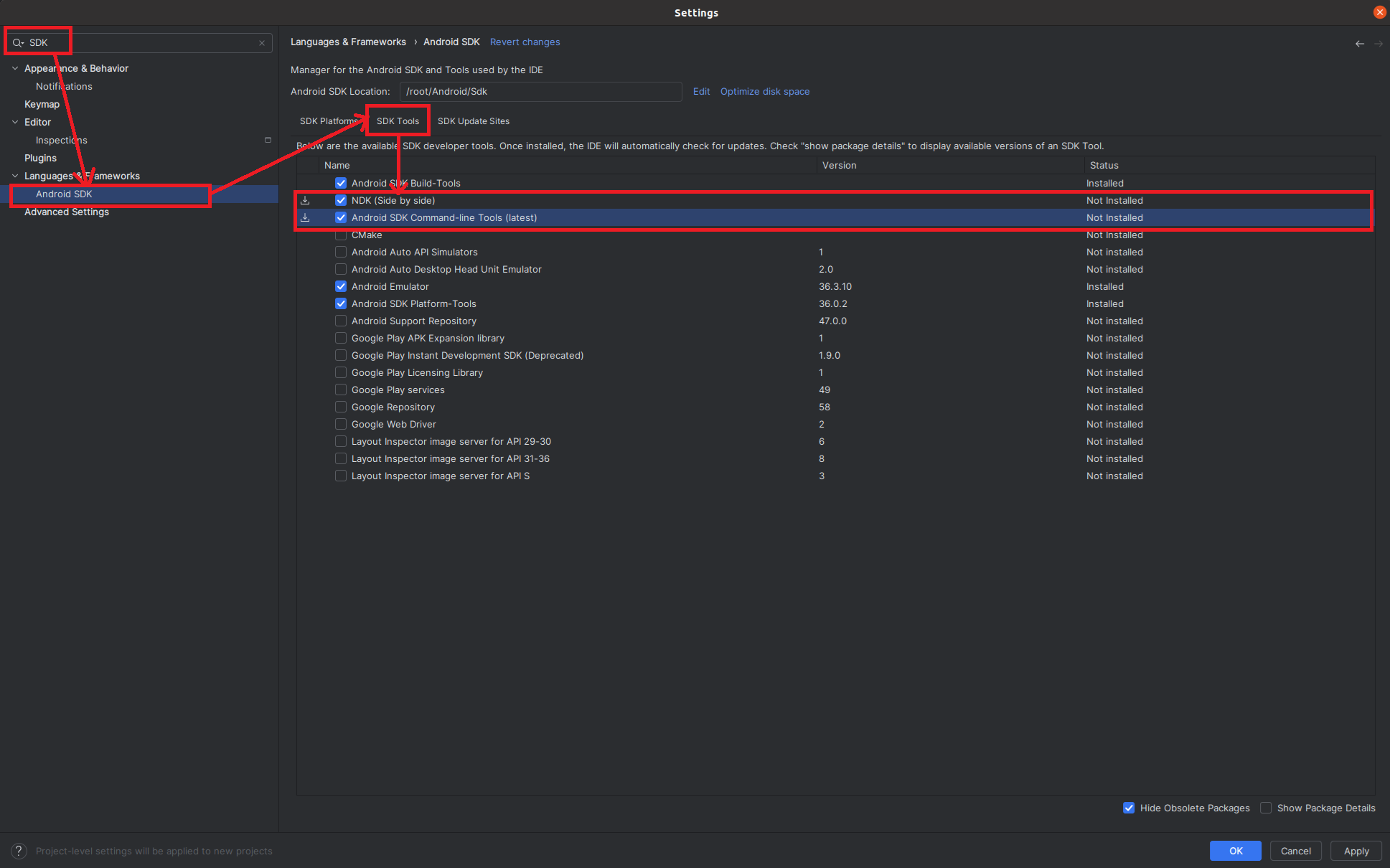
- In order to install additional tools run Android Studio, go to Settings and type
sdkon the search bar. - Select the SDK:
- Click Android SDK`
- Navigate to SDK Tools
- Check Android SDK Command-line tools (latest):
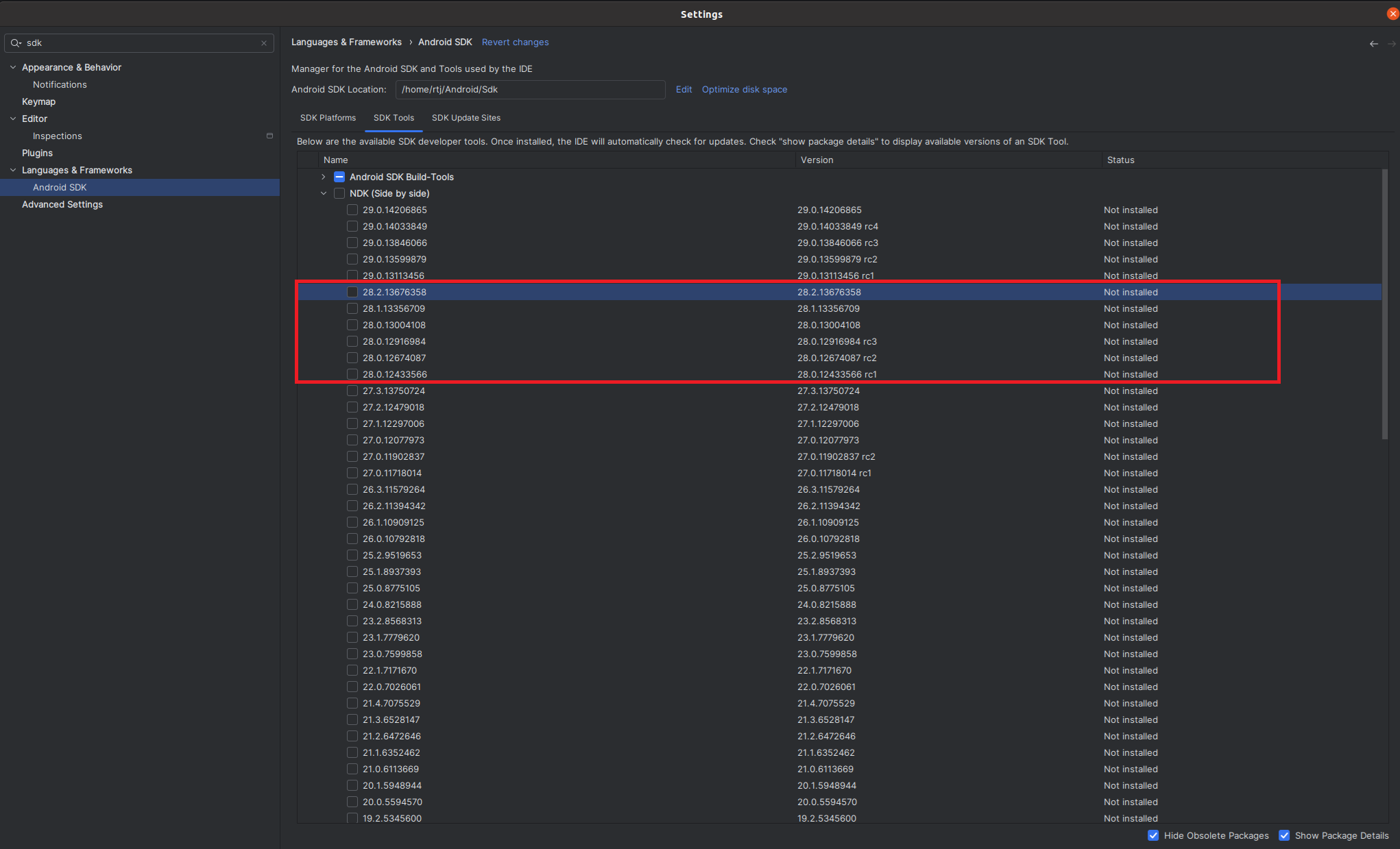
- Select the NDK. Note that Servo requires version 28 of the NDK.
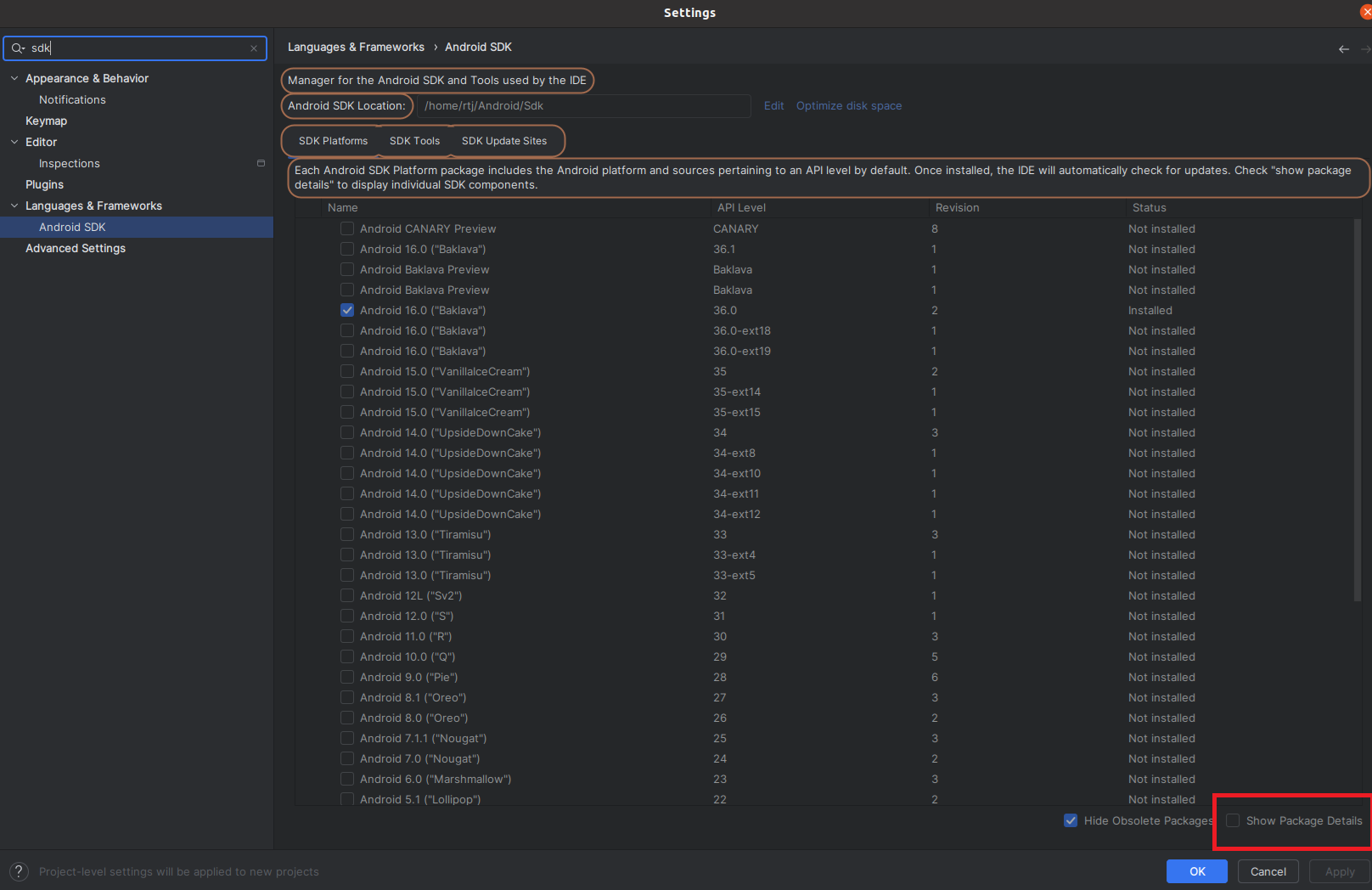
- In the SDK Tools section, select NDK (side by side)
- Click show package details:
- Select the latest version of NDK 28:
- Click Ok to install both the NDK and SDK.
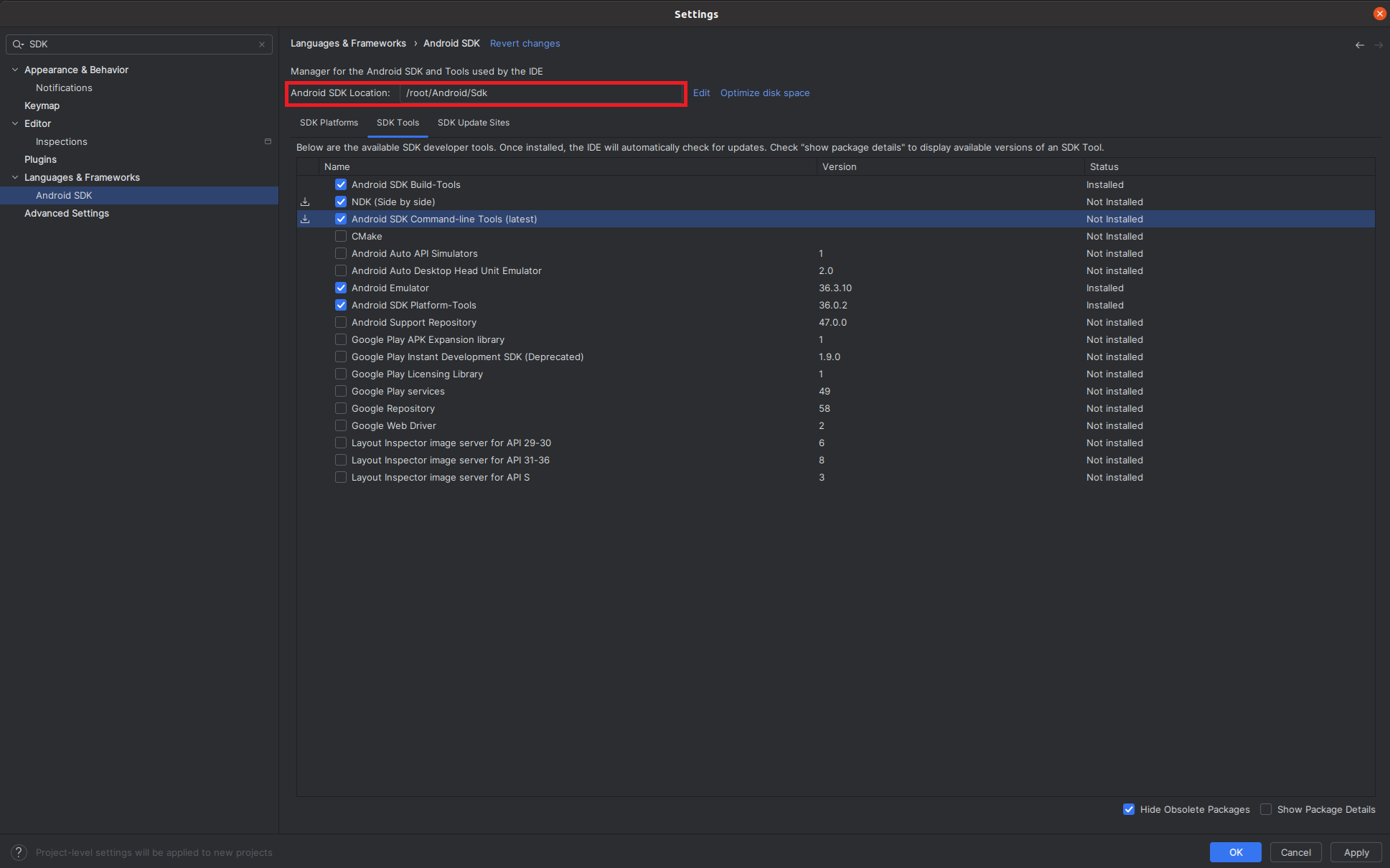
- Find the path to the SDK under Languages & Frameworks then Android SDK Location:
 .
Then, ensure that the following environment variables are set:
.
Then, ensure that the following environment variables are set:
ANDROID_SDK_ROOT: The path found above.ANDROID_NDK_ROOT:$ANDROID_SDK_ROOT/ndk/28.2.13676358/
- Run
./mach build --android
Running in the emulator
- Create a new AVD image to run Servo:
$ANDROID_SDK_ROOT/cmdline-tools/latest/bin/avdmanager create avd \ --name "Servo" \ --device "pixel" \ --package "system-images;android-33;google_apis;arm64-v8a" \ --tag "google_apis" \ --abi "arm64-v8a" - Enable the hardware keyboard.
Open
~/.android/avd/Servo.avd/config.iniand changehw.keyboard = notohw.keyboard = yes. - Launch the emulator
$ANDROID_SDK_ROOT/emulator/emulator -avd Servo -netdelay none -no-snapshot - Install Servo on the emulator:
./mach install --android - Start Servo by tapping the Servo icon on your launcher screen.
Installing on a physical device
- Set up your device for development.
- Build Servo as described above, ensuring that you are building for the appropriate target for your device.
- Install Servo to your device by running:
./mach install --android - Start Servo by tapping the Servo icon on your launcher screen or run:
./mach run --android https://www.servo.org/
You can request a force-stop of Servo by running:
adb shell am force-stop org.servo.servoshell
You can uninstall Servo by running:
adb uninstall org.servo.servoshell
Troubleshooting
Be sure to look at the General Troubleshooting section if you have trouble with your build.